Host App Setup
Here you will learn what the Host App needs to configure for the Group Link SDK to work correctly.
Note: iOS only reads these settings from the app, so they cannot come from inside your SDK or the Group Link SDK.
Step 1 - Editing the Info.plist file with the Xcode visual editor
All the Host App permissions are listed in the Custom iOS Target Properties section of the Info.plist.
- Select the Host App TARGET in
TARGETS. - Go to the
Infotab.
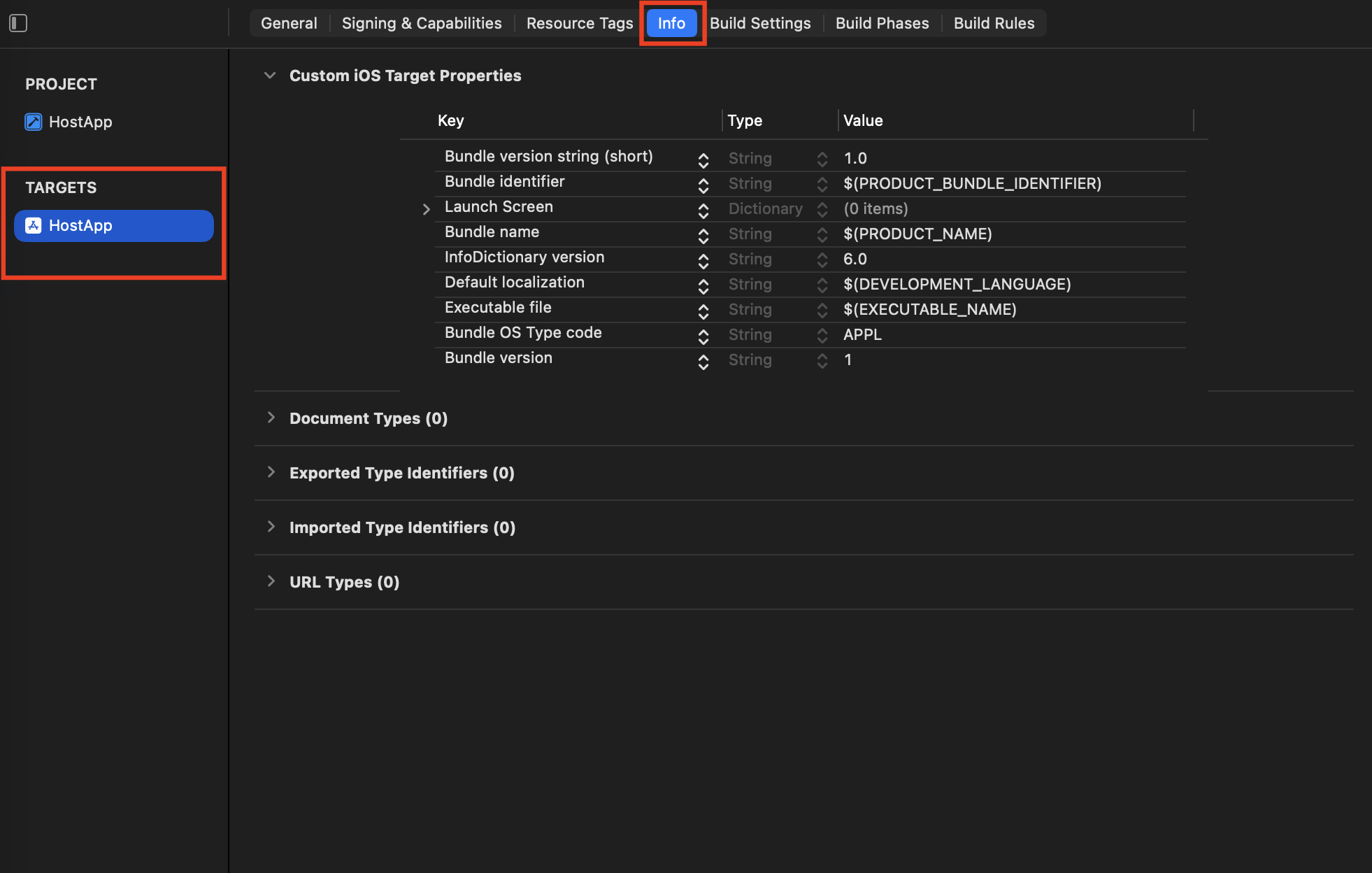
Host App Info tab in Xcode
Step 2 - Adding permissions
Note: The description messages are shown when the Host App asks the user for permission to use a service. Make sure to add a message that is meaningful to your users.
Enable Location Services
To get beacon ranging results, the Group Link One technology requires Always location authorization. When implementing location services in the Host App, Apple requires the following keys to be added to the Info.plist file:
NSLocationWhenInUseUsageDescriptionNSLocationAlwaysAndWhenInUseUsageDescription
Description Example: Location helps ensure more accurate readings and correct alerts about water consumption. This allows the app to deliver your home consumption data.
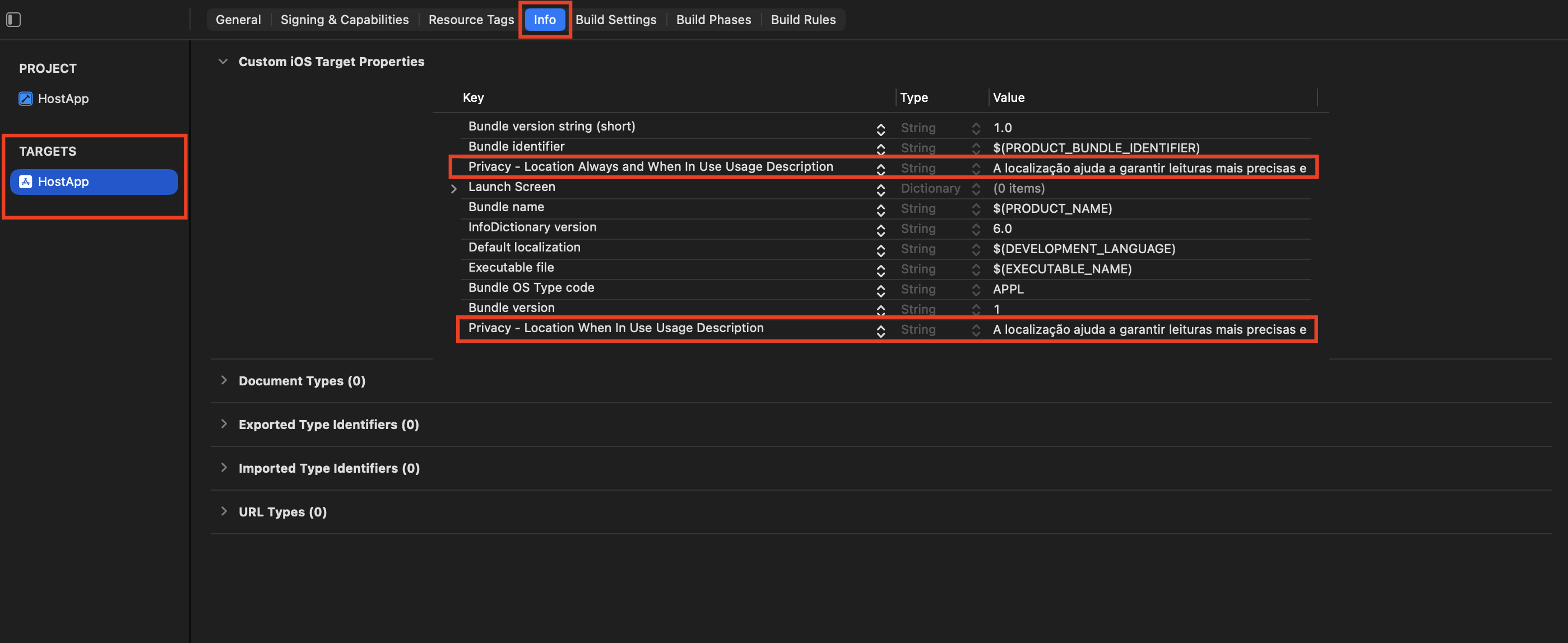
Location permissions setup in the Host App
Enable Bluetooth Services
Since iOS 13, apps are required to add the Bluetooth permission key to the Info.plist file.
NSBluetoothAlwaysUsageDescription
Description Example: To ensure the quality of the consumption readings, the app needs to access Bluetooth, which helps collect the data more accurately.
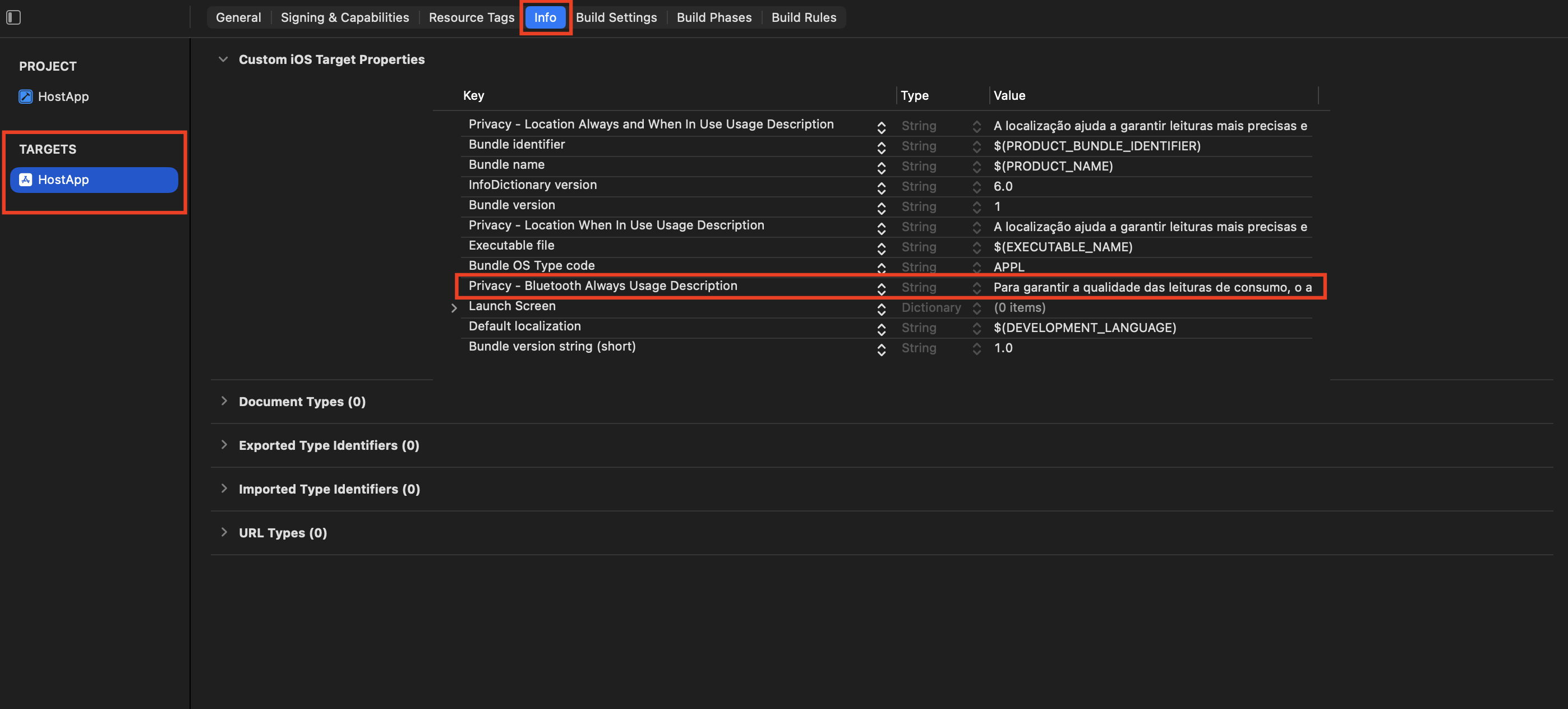
Bluetooth permission setup in the Host App
[OPTIONAL] - Apps compatible with iOS 12 and below
If the Host App can run on older iOS versions (iOS 12 and below), you will need to add the following key to your Info.plist file:
NSBluetoothPeripheralUsageDescription
Description Example: To ensure the quality of the consumption readings, the app needs to access Bluetooth, which helps collect the data more accurately.
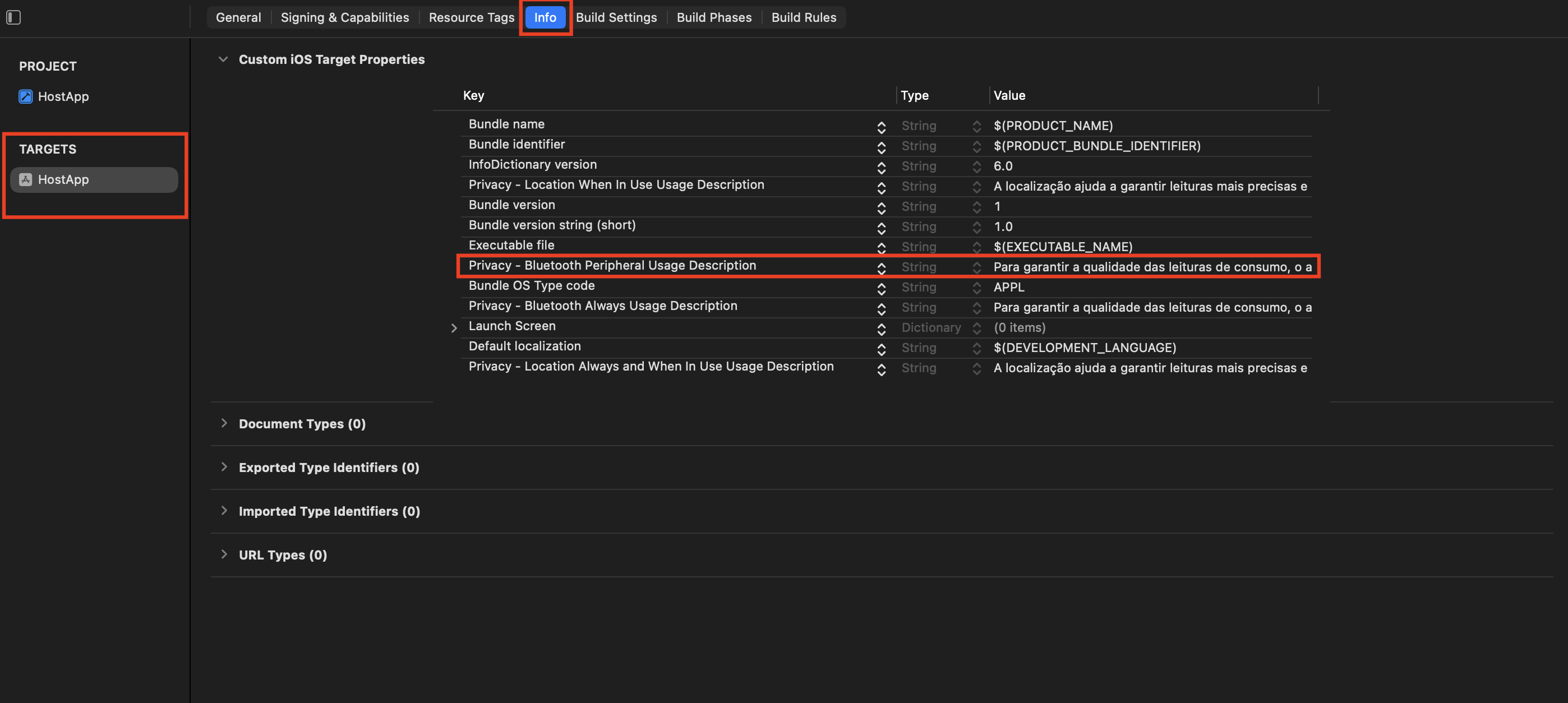
Bluetooth Peripheral permission setup in the Host App
Enable the Background Tasks Feature
To enable background tasks in the Host App, you need to add the following key to your Info.plist file:
BGTaskSchedulerPermittedIdentifiers
Open the created key, Permitted background task scheduler identifiers, and add the Group Link SDK identifier:
com.grouplinknetwork.bgtask
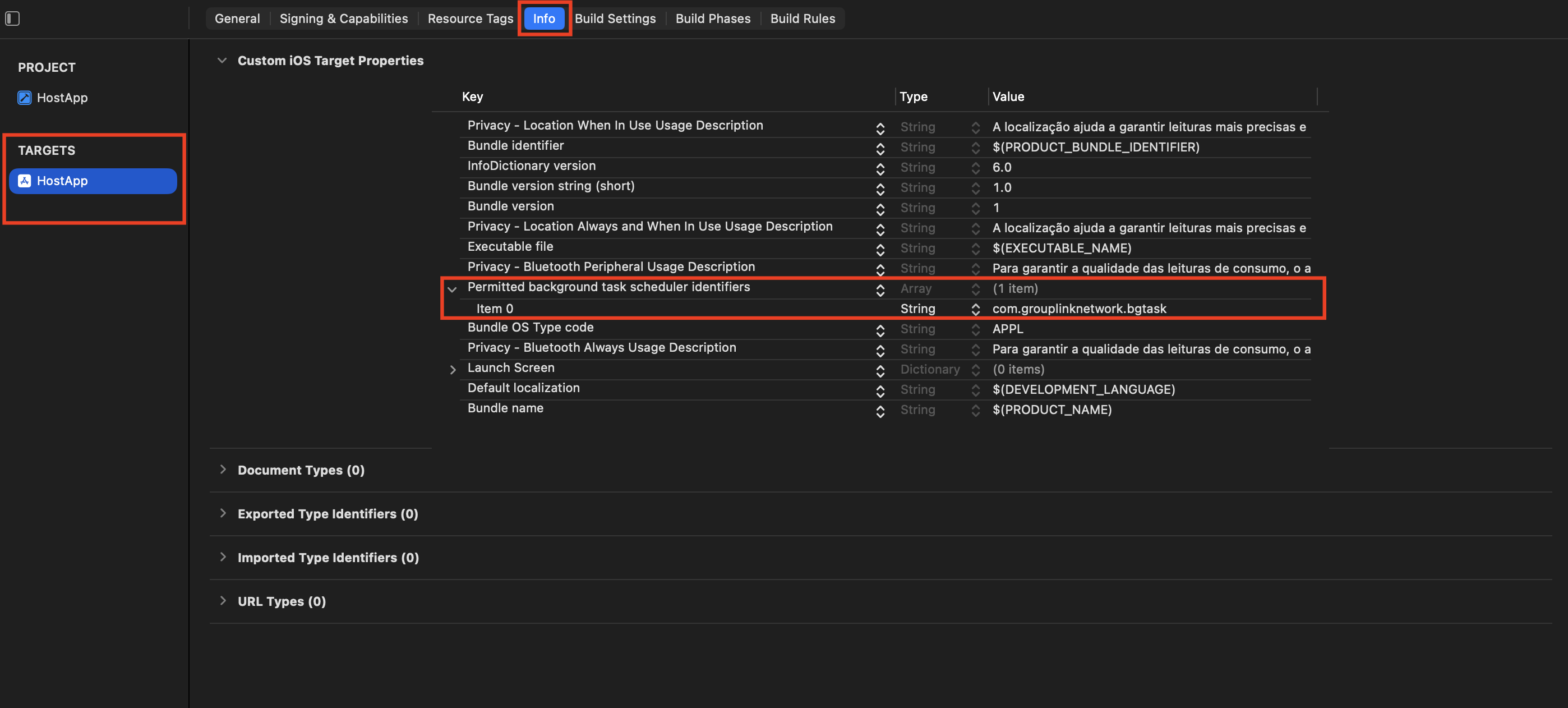
Background tasks permission setup in the Host App
Step 3 - Signing Permissions and Capabilities
- Select the Host App TARGET in
TARGETS. - Go to the
Signing & Capabilitiestab. - Click the
+ Capabilitybutton to add the following capabilities:
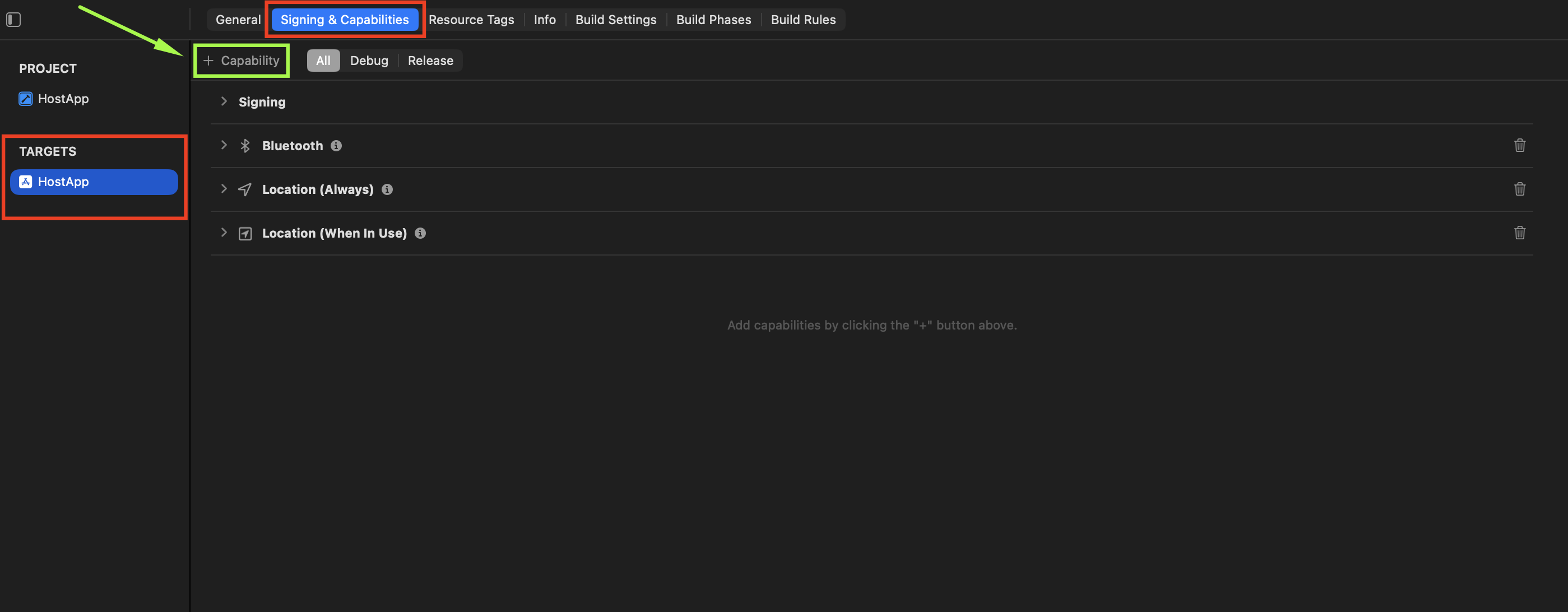
Signing Capabilities in the Host App
Enable Access to Wi-Fi Information
The Host App must be able to access the Wi-Fi network information for the Group Link One technology to work correctly. To do so, you must add the following capability:
Access Wi-Fi Information
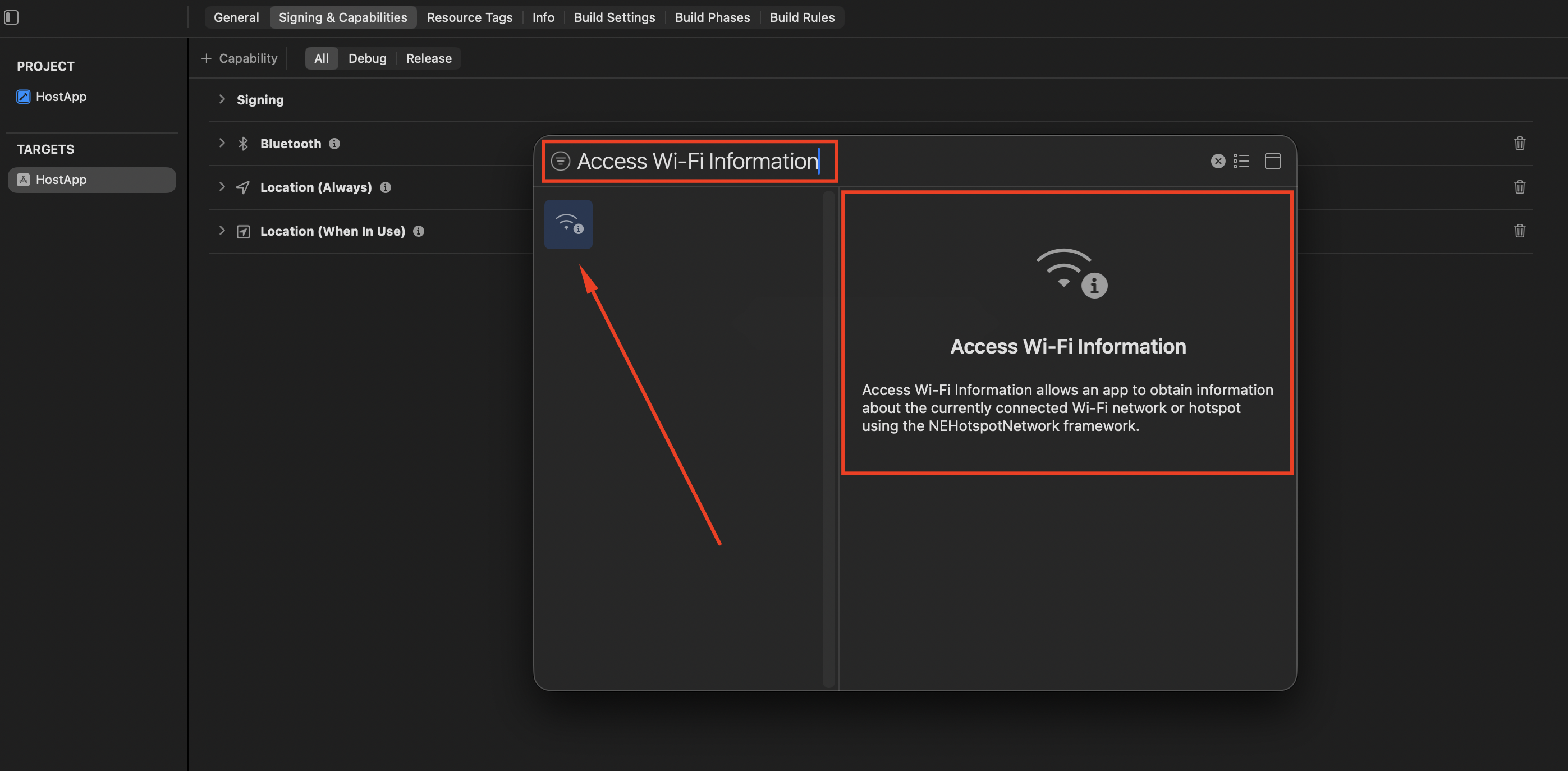
Access Wi-Fi Information capability in the Host App
Enable the Required Background Modes
The Host App must be able to run in the background for the Group Link One technology to work correctly. To do so, you must add the following capability:
Background Modes
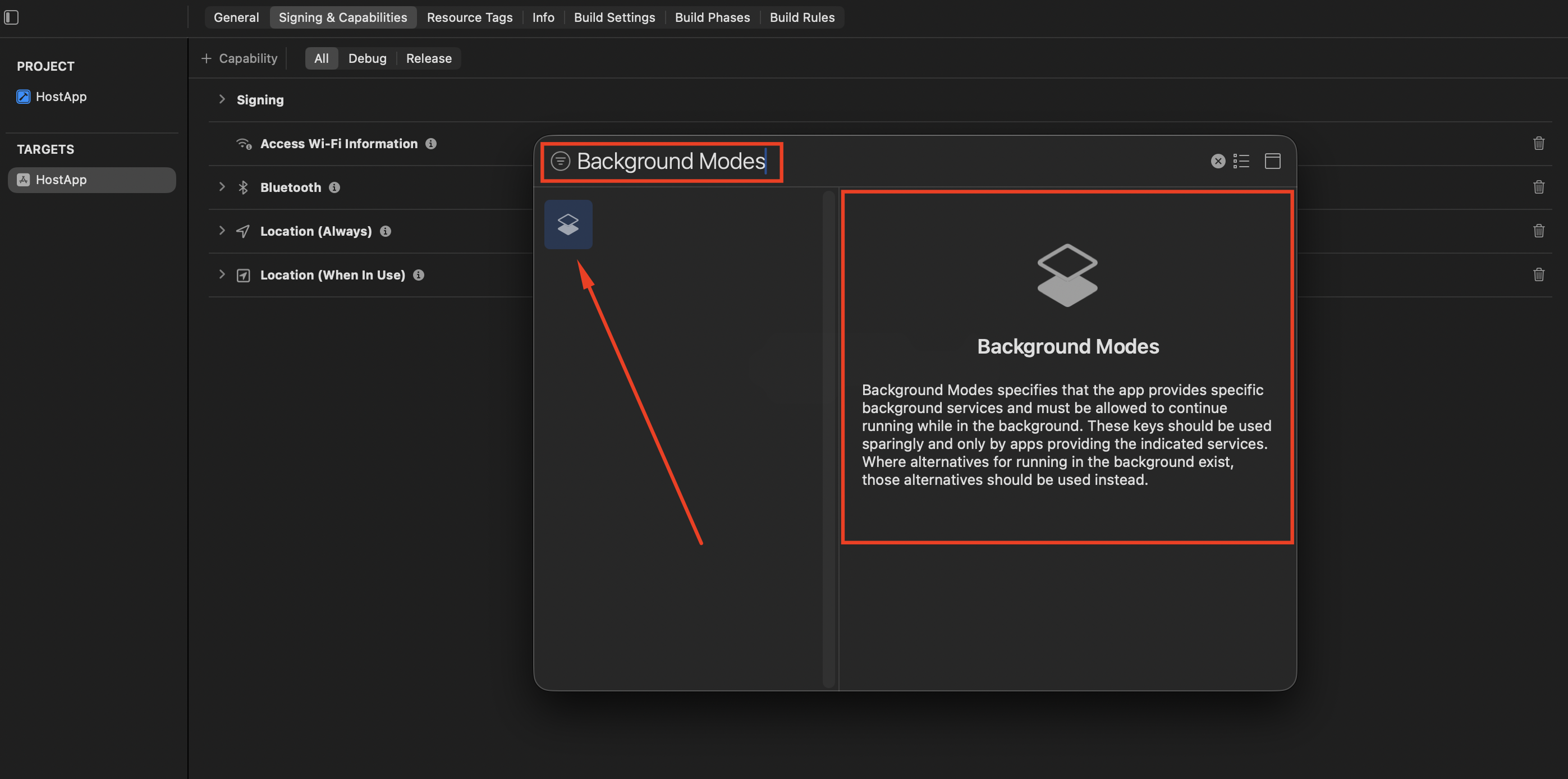
Background Modes capability in the Host App
Select the following authorizations in the list:
- Acts as a Bluetooth LE accessory
- Background fetch
- Background processing
- Location updates
- Uses Bluetooth LE accessories
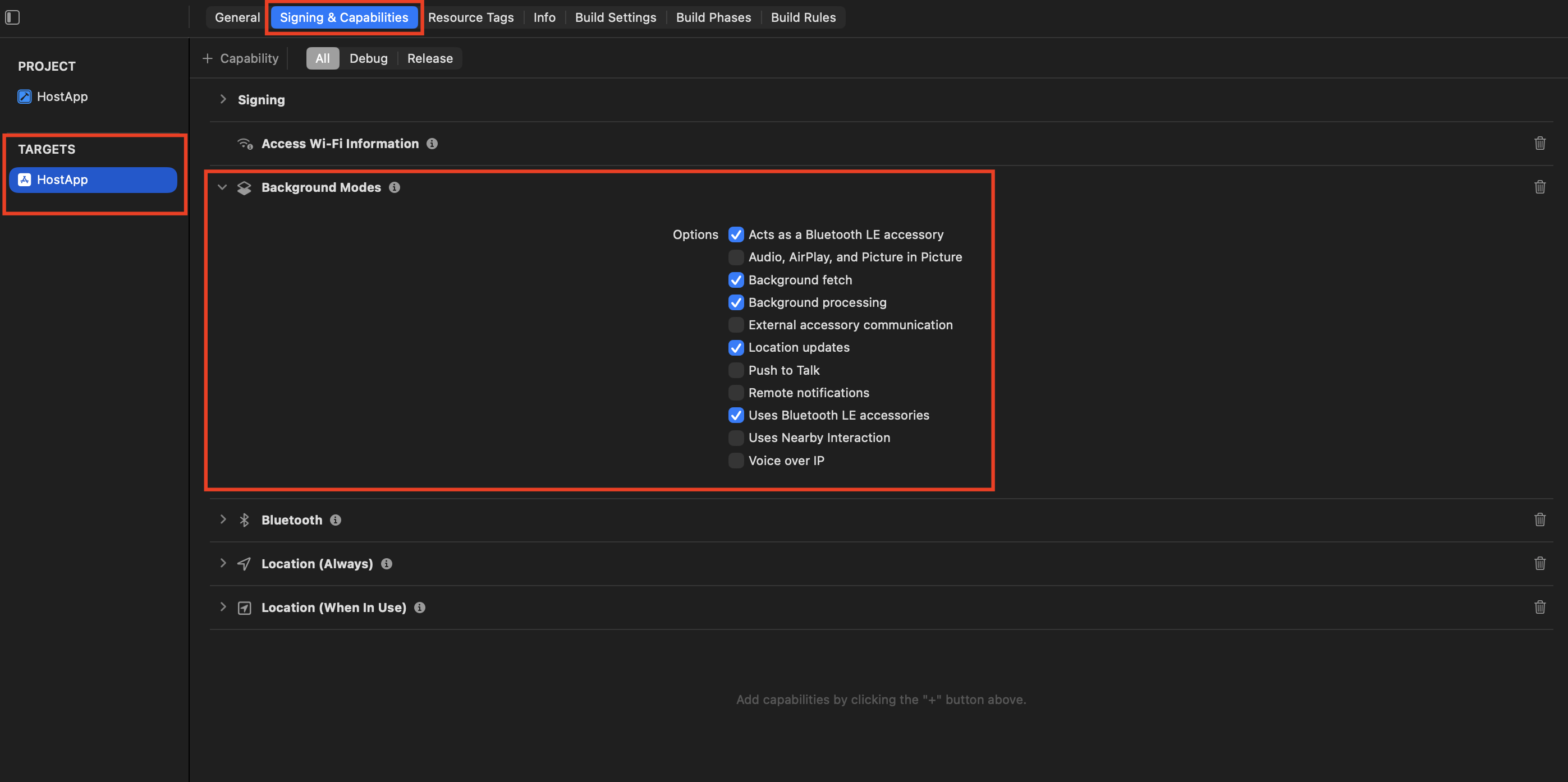
Background Modes authorizations in the Host App